My Linux Desktop: Why I Switched to Hyprland (via Omarchy)
From GNOME to Hyprland — why I switched, what Omarchy gives out of the box, what I customized, and what still isn't perfect.
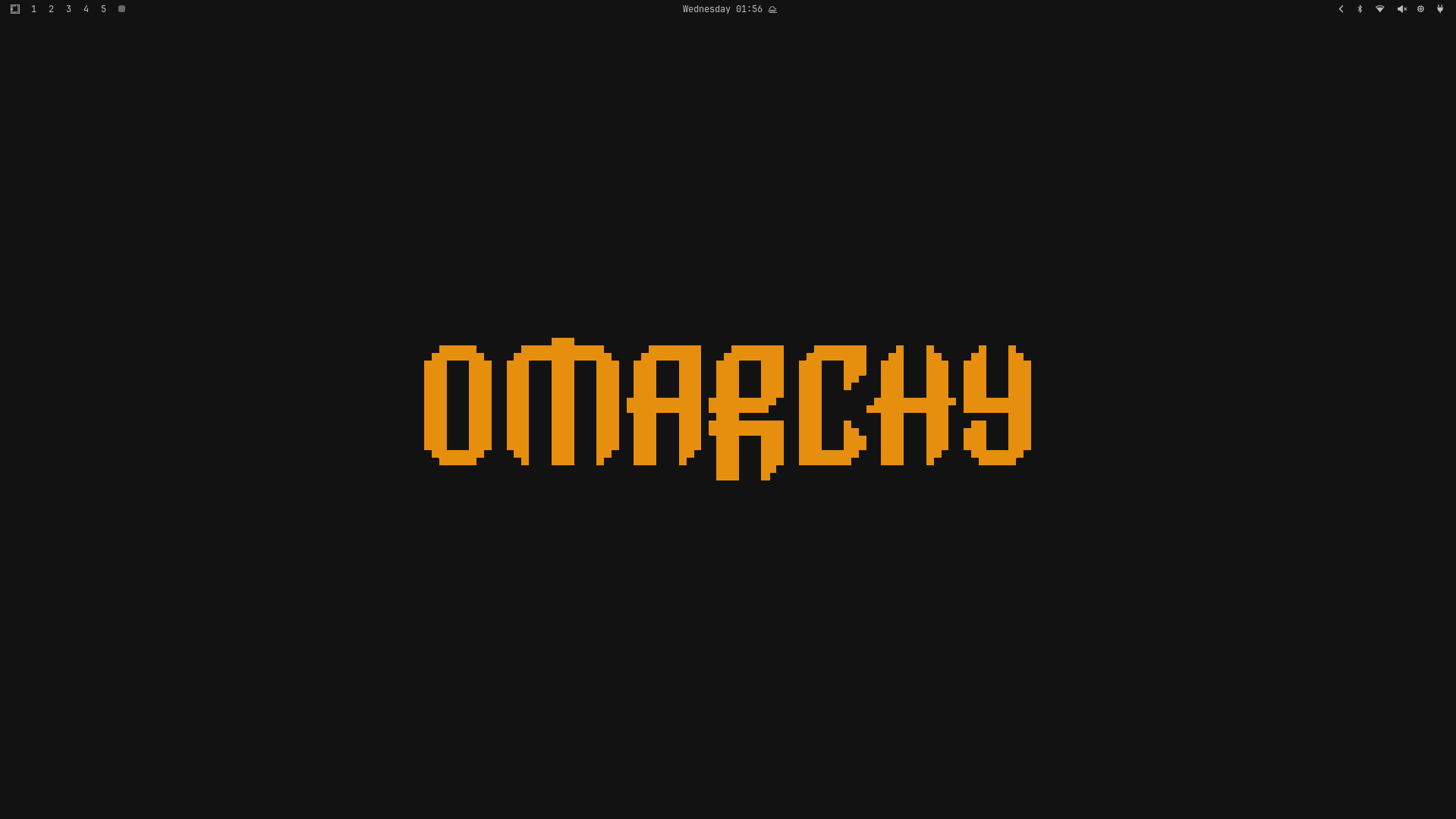
1. The Hook
If you hang around Linux spaces, you’ve probably heard of Hyprland. It’s a tiling Wayland compositor — keyboard-driven, heavily animated, and endlessly customizable. The kind of thing people love to tinker with.
I didn’t build my setup from scratch. I’m using it through Omarchy, an opinionated, Arch Linux based distro. I found out about it through r/unixporn and it looked classy. That was my hook.
Before this I’d used GNOME, KDE, XFCE, and Cosmic, but I stuck with GNOME because it felt modern and easy to use. Here’s why I went looking anyway, what I ended up with, and what I changed along the way.
2. The “Why” — What Pushed Me to Switch
Pain points with my old setup:
- There’s not much point running Linux if your setup isn’t keyboard-oriented. Mine still relied on a lot of mouse usage, and it sucked.
- Window management meant manual dragging and resizing, which sucked even more.
- Workspace handling was clumsy and I kept losing windows.
- GNOME felt bloated and RAM-heavy, and it lagged sometimes on my Latitude 7280 — the animations weren’t smooth enough.
Why Hyprland specifically:
- Tiling, done properly. Windows have rules and places. My workflow is terminal-heavy — networking, servers, writeups — so a keyboard-first layout just clicked.
- Wayland. Modern, smooth, and properly fast on the hardware I have.
- The animations. Actually useful for tracking where windows are moving, not just decorative.
- The LinuxGod feeling. There’s nothing quite like controlling your whole setup with just a keyboard.
Why Omarchy instead of rolling my own Hyprland config:
- It saves the massive initial config grind. Setting up Hyprland from scratch is a pain for a noob like me — I wanted a minimal, preconfigured setup.
- Curated defaults: sensible keybinds, a working bar, a launcher, and beautiful themes.
- Opinionated choices I happened to agree with — the color schemes, the minimalism, and the OG screensaver. I love it.
3. What Omarchy Gives You Out of the Box
Fresh install, this is what you get:
- Gruvbox theme
- A solid default keybind set
- Waybar
- A launcher named Walker
- Alacritty terminal emulator
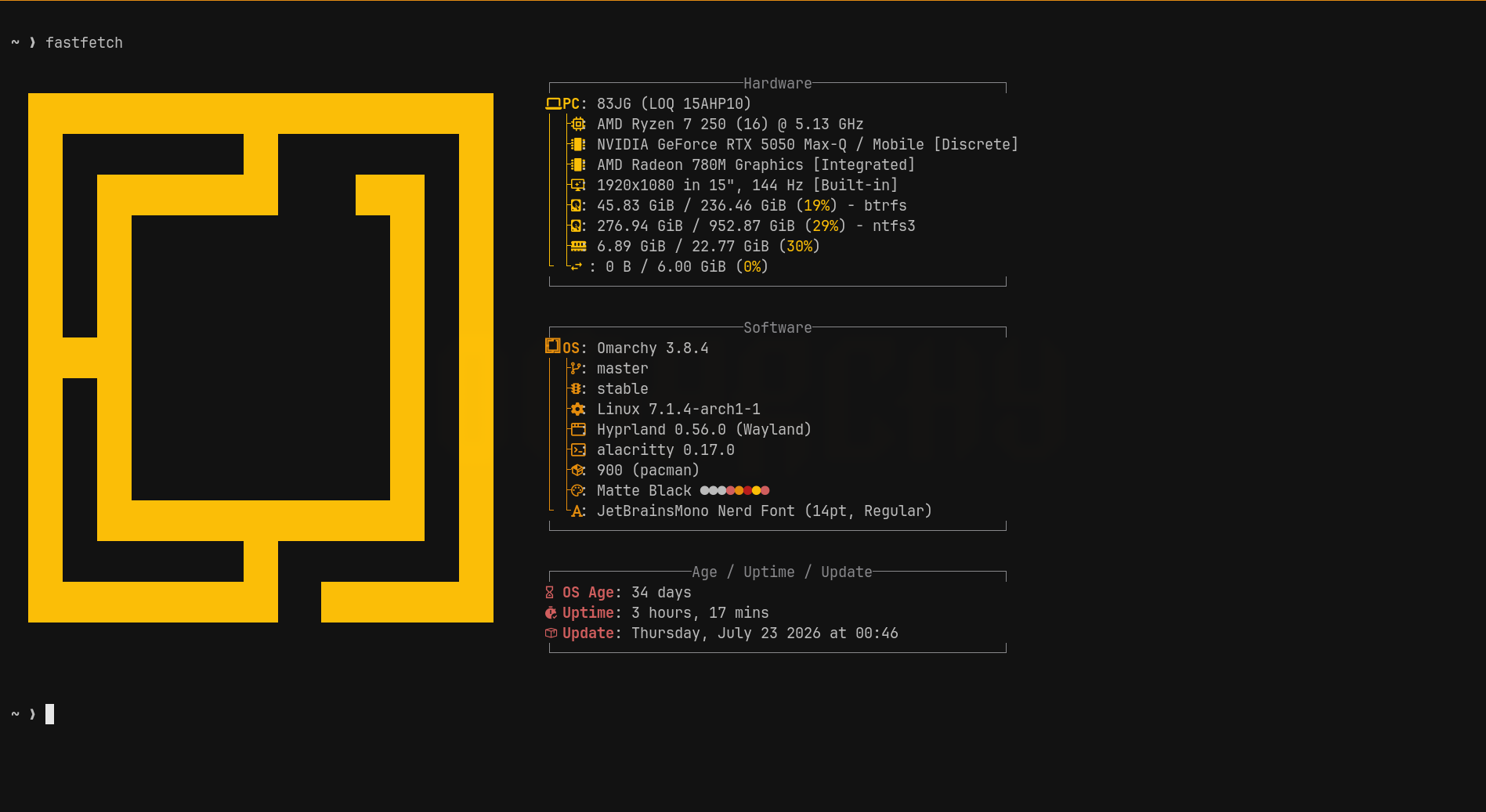
- A bash shell with a fastfetch prompt
- Other defaults like lockscreen, screensaver, idle handling, notification daemon, etc.
Installation experience: for my setup it just took 5 minutes — make a bootable USB, boot from it, select the drive to install, give your user details, and click install. Simple as hell.
4. What I Changed
This is the fun part — where I diverged from the Omarchy defaults:
- Installed more themes from GitHub using the
omarchy-theme-install {theme url}command. - Reduced the border gaps and border size by editing
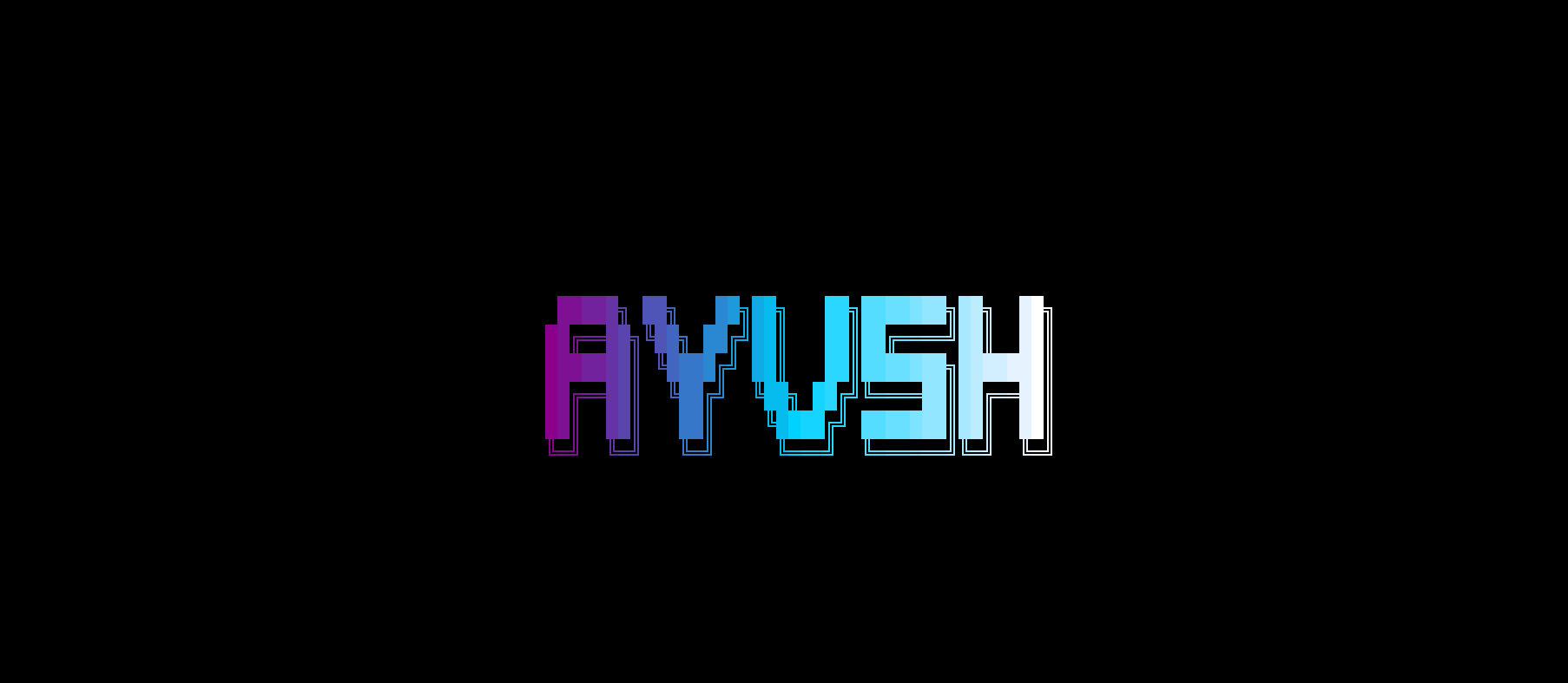
~/.config/hypr/looknfeel.conf. - Changed the screensaver text from “Omarchy” to my name, Ayush, by editing
~/.config/omarchy/branding/screensaver.txt.
Here’s a screenshot of the screensaver — there’s a lot of animation you can only really appreciate while it’s running.
5. Bar & Status Info
I’m using Waybar, which Omarchy ships by default. I had nothing to change here — it just worked flawlessly.
- SUPER + SHIFT + SPACE hides the top bar, which gives you extra vertical space.
This is the bar in motion — you can see it showing the time, workspaces, and some system shortcuts.

And here it is hidden, freeing up that vertical space.

6. Window Management / Tiling Behavior
- Layout style: Dynamic tiling that just works the way you’d expect — windows snap into place and resize predictably instead of fighting you for space.
- Animations: Enough to say “all hail to DHH!!!!!”
- Things I changed from Omarchy’s defaults: I run Omarchy on a laptop, so I enabled three-finger swipe to change workspaces (it’s off by default). You can turn this on by editing
~/.config/hypr/input.conf— there are a lot of settings in there worth messing with.
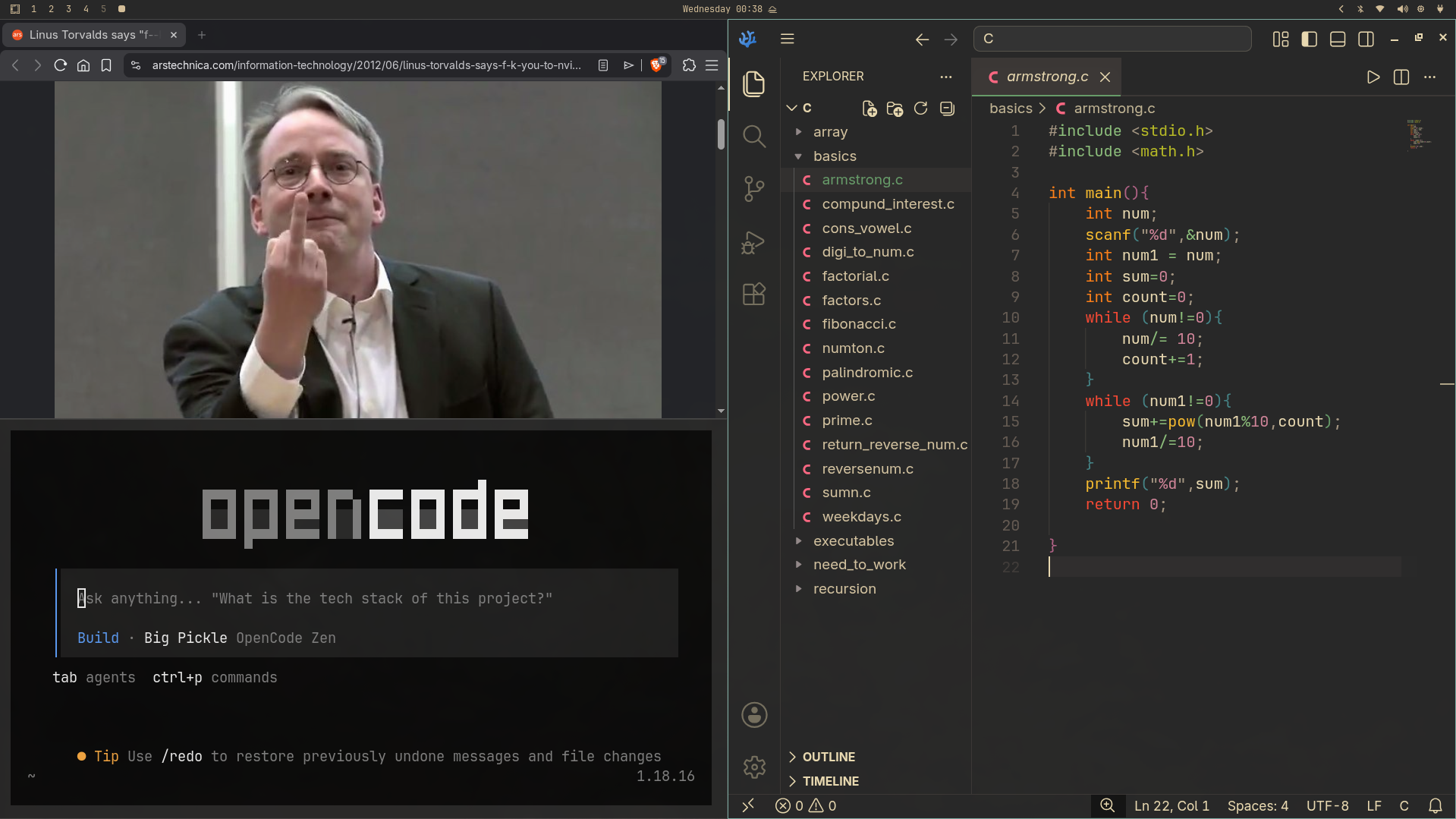
Here’s my tiling window manager in action — you can see Linus Torvalds telling NVIDIA something. As you can see, I’ve got Brave, VSCodium, and OpenCode running in the same workspace, all perfectly tiled without fighting for my attention.
7. App Launcher, Notifications, Widgets
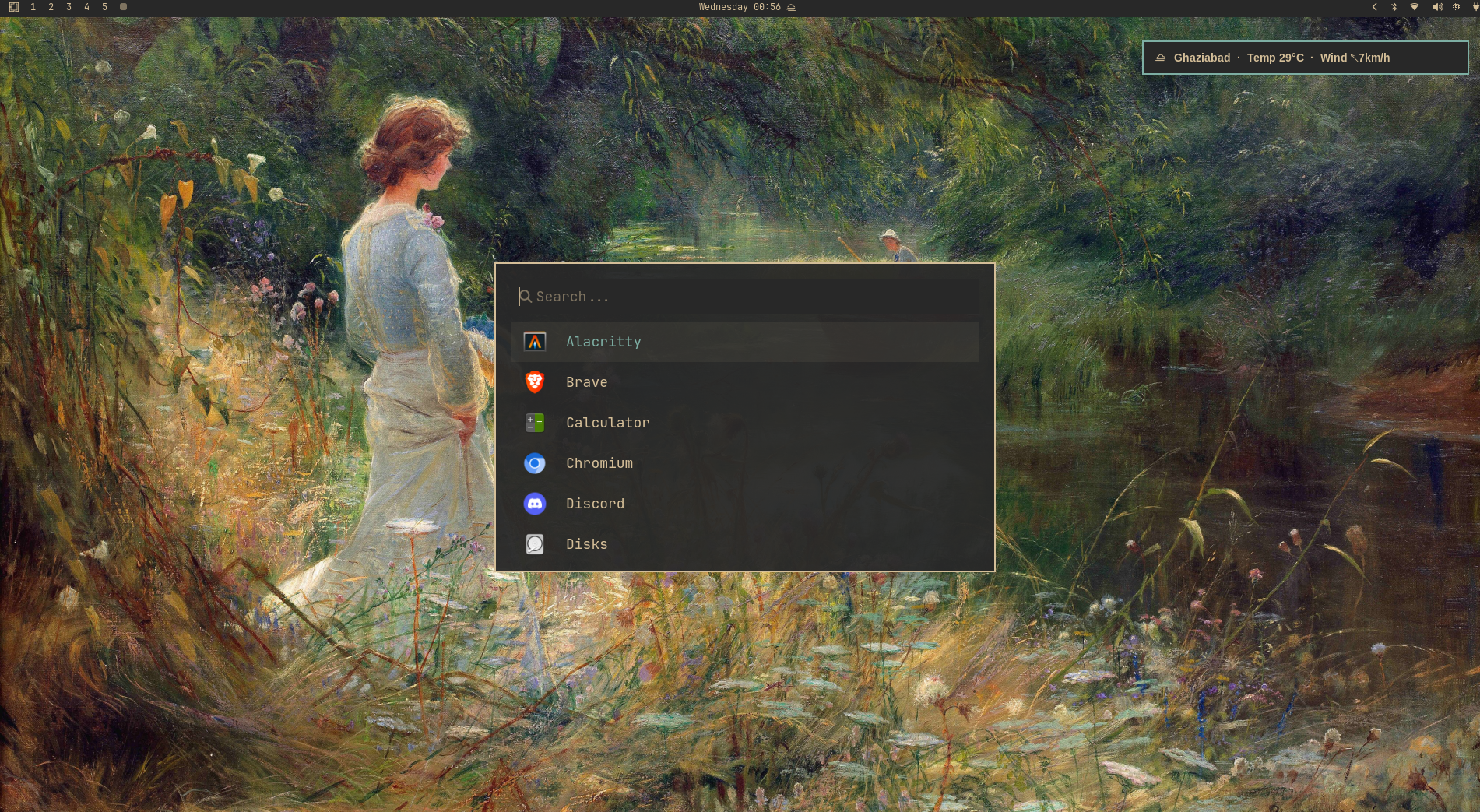
- Launcher: Omarchy ships Walker. I kept it because it just works.
- Notification daemon: Mako handles notifications in Omarchy.
Here’s how the launcher and notifications look on Omarchy:
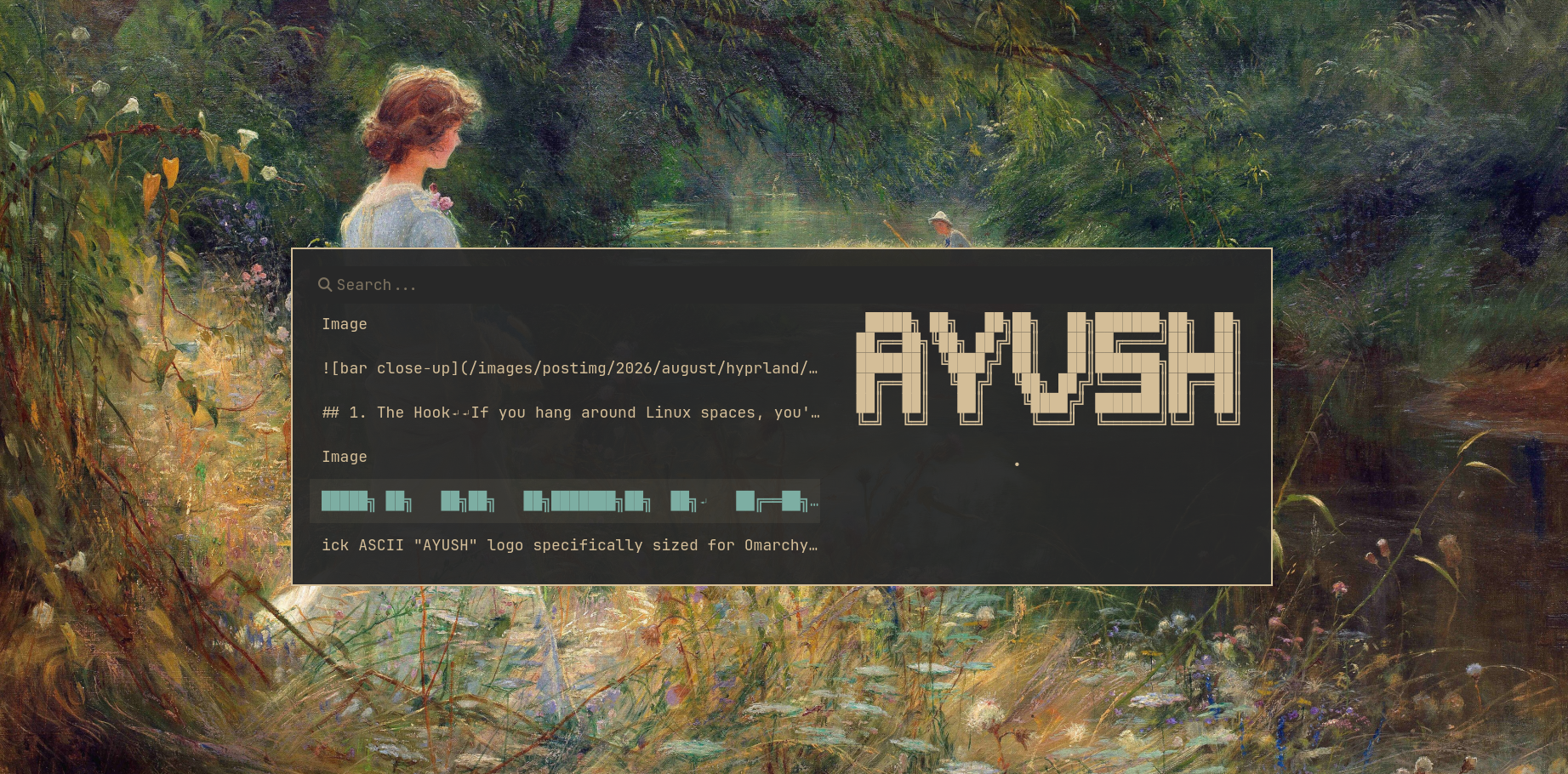
- Added on top: the clipboard manager is genuinely great — access it with SUPER + CTRL + V. Omarchy also has a built-in screen recorder that’s easy and efficient to use; just hit ALT + PRTSCRN to launch it.
Clipboard manager in Omarchy:
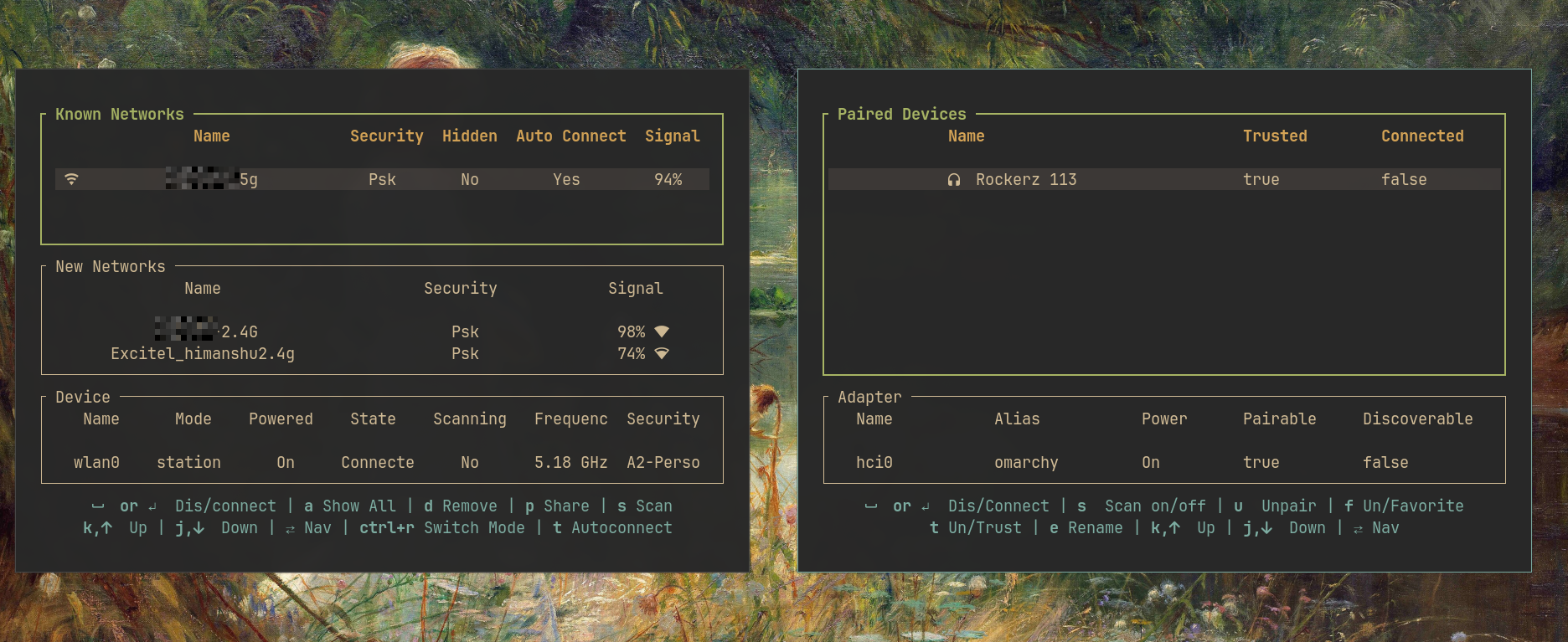
- Wifi & Bluetooth: Use SUPER+CTRL+W for Wi-Fi settings and SUPER+CTRL+B for Bluetooth.
8. Terminal & Workflow
- Terminal: Alacritty — kept Omarchy’s default.
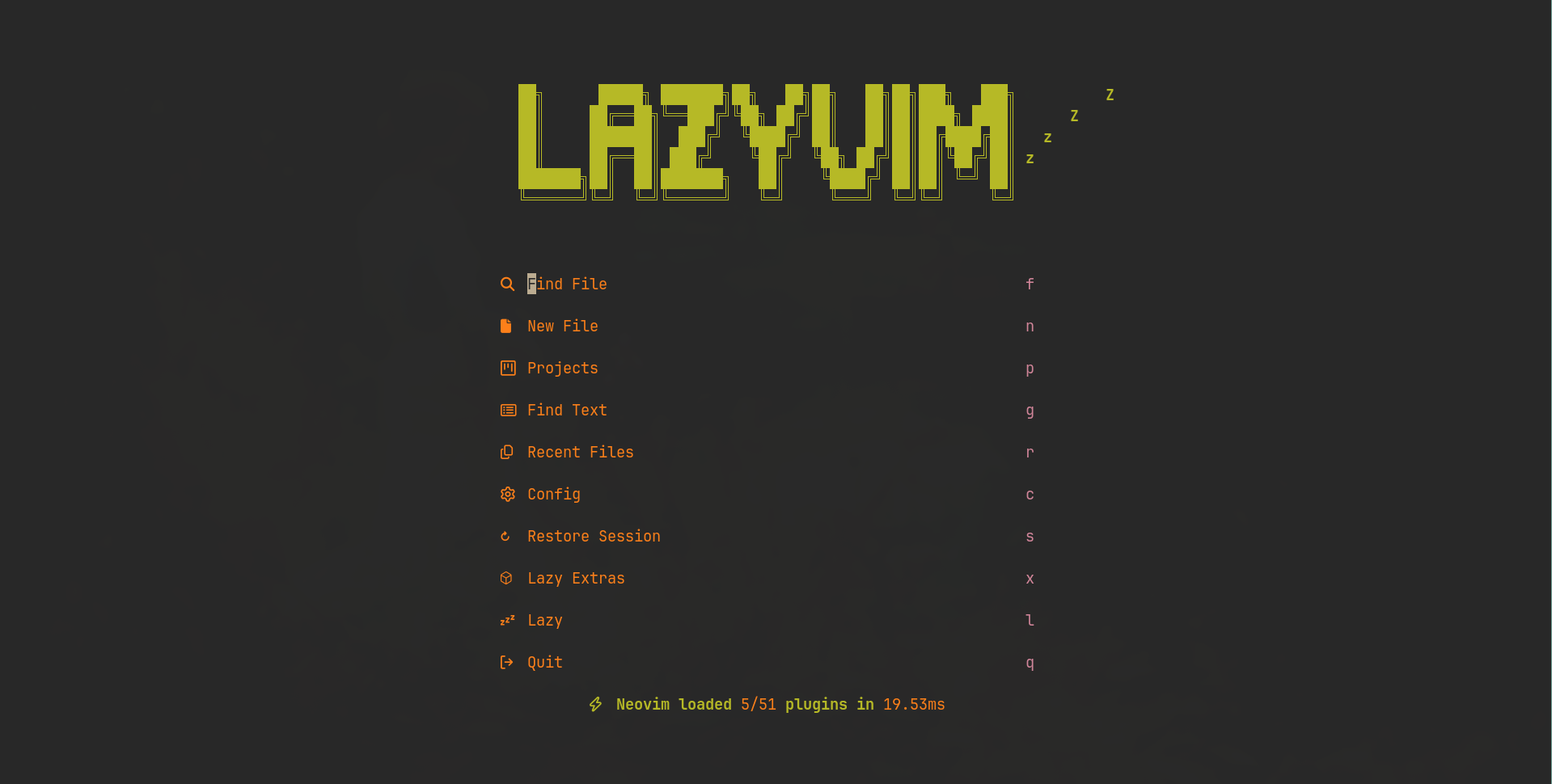
- Daily tools: OpenCode, LazyVim, Nano,
cd,ls— these are my all-time favorites. - LazyVim: Omarchy ships with a preconfigured Neovim setup too, which is a full-fledged, terminal-based IDE.
9. Keybindings & Daily Workflow
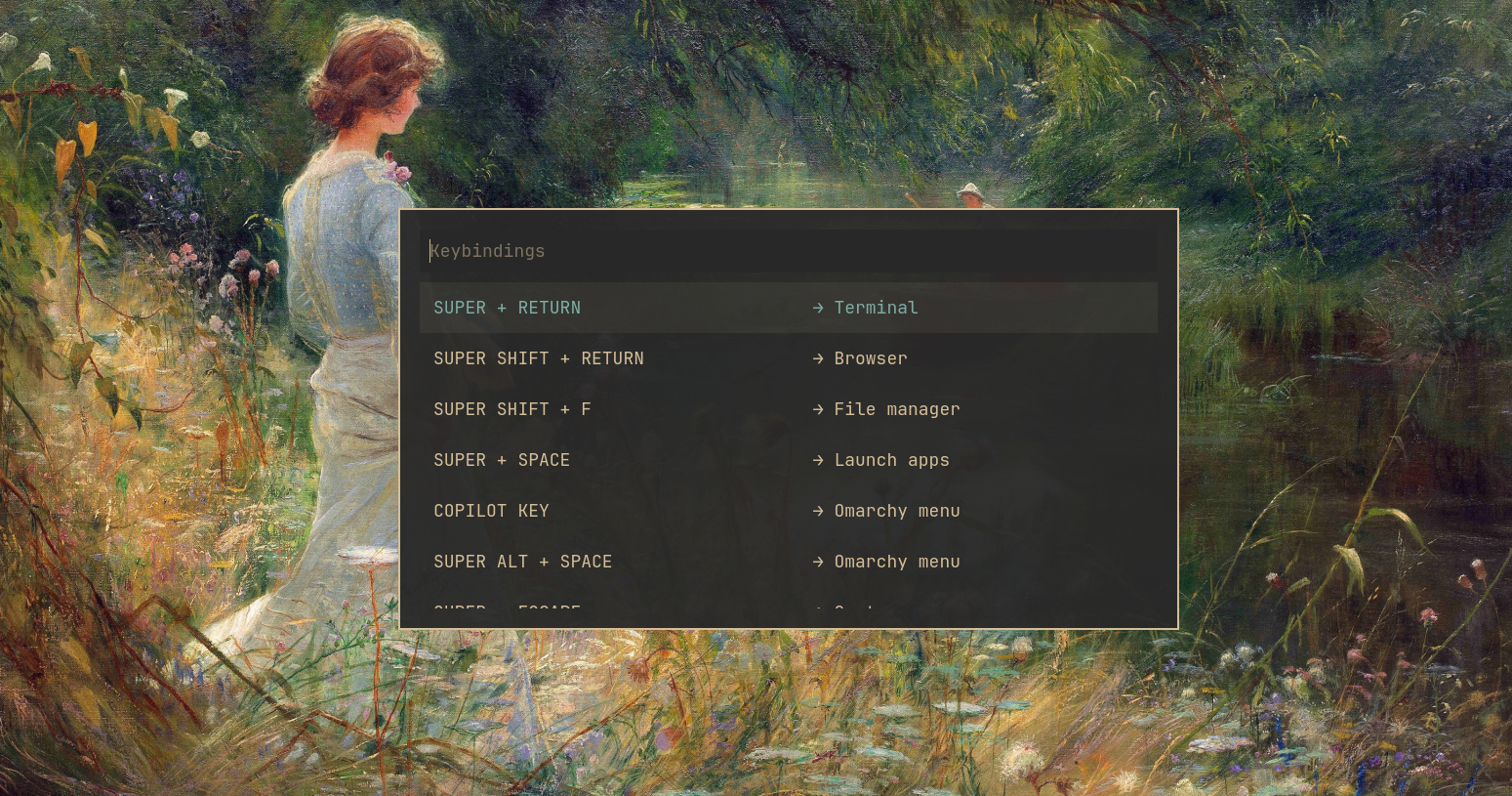
These are the binds I actually live in day to day. Omarchy’s defaults are solid, and you can remap them by editing ~/.config/hypr/bindings.conf.
A few I use constantly:
- SUPER + K — pull up the full keybinding cheat sheet
- SUPER + Return — open a new terminal
- SUPER + Q — close the focused window
- SUPER + [1-9] — jump to a workspace
10. Things That Aren’t Perfect
Being honest — not everything is smooth:
- If you’re new to Linux, I’d avoid Hyprland for now. It’s hard for newcomers — try Ubuntu, Zorin OS, or Linux Mint first.
- It comes with a fair number of closed-source apps, though you can uninstall them through the Omarchy menu.
- The ISO size is too damn large for a Linux distro.
- It requires reasonably compatible hardware.
This part keeps it credible: Hyprland is great, but it’s not a set-and-forget desktop.
11. Final Thoughts
Who this is for: people who like keyboard-driven workflows, don’t mind touching a config file, and want their desktop to feel intentional. Who it’s not for: people who never touch keybinds.
Did the “opinionated defaults” approach work for me? Honestly, yes. Omarchy saved me a lot of time and flattened the learning curve for a keyboard-driven workflow.